
568 words
3 minutes
Git

I. Git — Clean, Fork Sync & Rebase
Overview: This note covers three related Git workflows: removing tracked and untracked files from the working directory with
git clean and git restore; keeping a fork up to date with its upstream repository via merge or rebase; and understanding why rebase is preferred over merge for fork synchronization.
1. Removing Files from the Working Directory
1) Remove Git-tracked Files
git restore .Discards all unstaged changes to tracked files and restores them to the last committed state.
2) Remove Untracked Files (git clean)
| Command | Danger | Description |
|---|---|---|
git clean -f | ⭐ | Deletes a small number of untracked files |
git clean -fd | ⭐⭐ | Also removes untracked directories (e.g., build dirs) |
git clean -fdx | 🔥🔥🔥 | Removes almost all locally generated content, including files ignored by .gitignore |
git clean -fdxn | — | -n = dry-run: preview what would be deleted without actually deleting |
Note: Always run
git clean -fdxn first to preview the files that would be removed before committing to -fdx. This operation is irreversible.2. Updating a Forked Repository
1) Method 1: Sync Upstream Locally (Recommended)
Step 1: Navigate into Your Local Repository
cd your-repoStep 2: View Existing Remotes
git remote -vStep 3: Add the Upstream Remote (One-time Setup)
git remote add upstream https://github.com/ORIGINAL_OWNER/ORIGINAL_REPO.gitStep 4: Fetch the Latest Changes from Upstream
git fetch upstreamStep 5: Integrate Upstream Changes into Your Branch
Option A — Merge:
git checkout maingit merge upstream/mainIf the upstream default branch is master:
git checkout mastergit merge upstream/masterOption B — Rebase (Recommended):
git checkout maingit fetch upstreamgit rebase upstream/mainStep 6: Push the Updated Branch to Your Fork
After merge:
git push origin mainAfter rebase:
git push origin main --force-with-lease2) Method 2: Sync Directly on GitHub (Web UI)
Open your fork on GitHub, then click:
Sync fork → Update branchNo local commands required.
3. Why Rebase Is Preferred for Fork Sync
When syncing a personal fork with its upstream, rebase is the recommended approach.
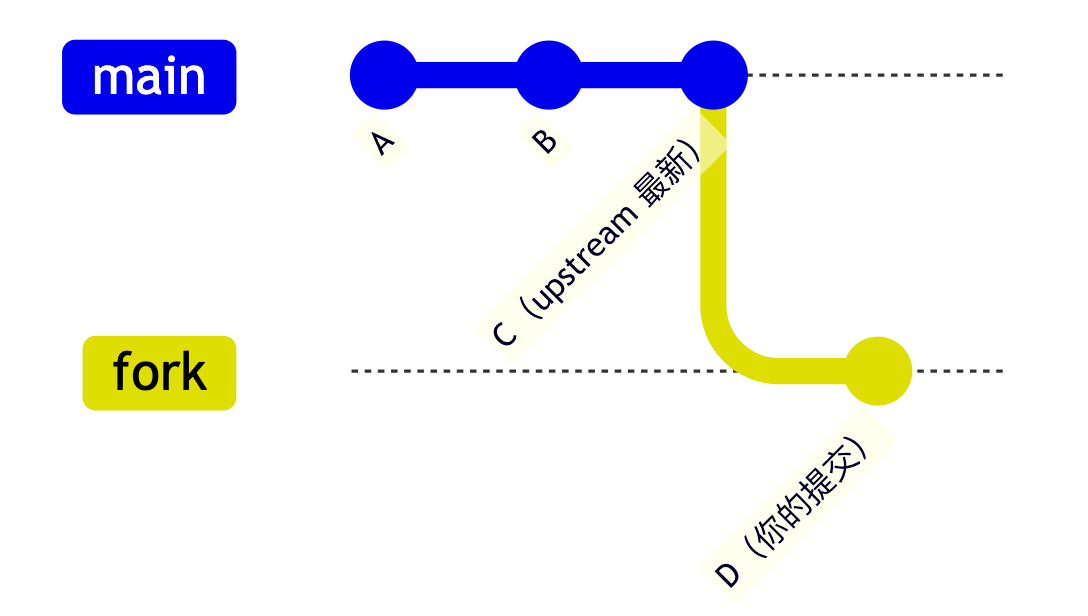
Typical scenario:
- upstream has moved ahead with new commits
- Your fork is behind upstream
- You have your own local commits on top
1) Using Merge
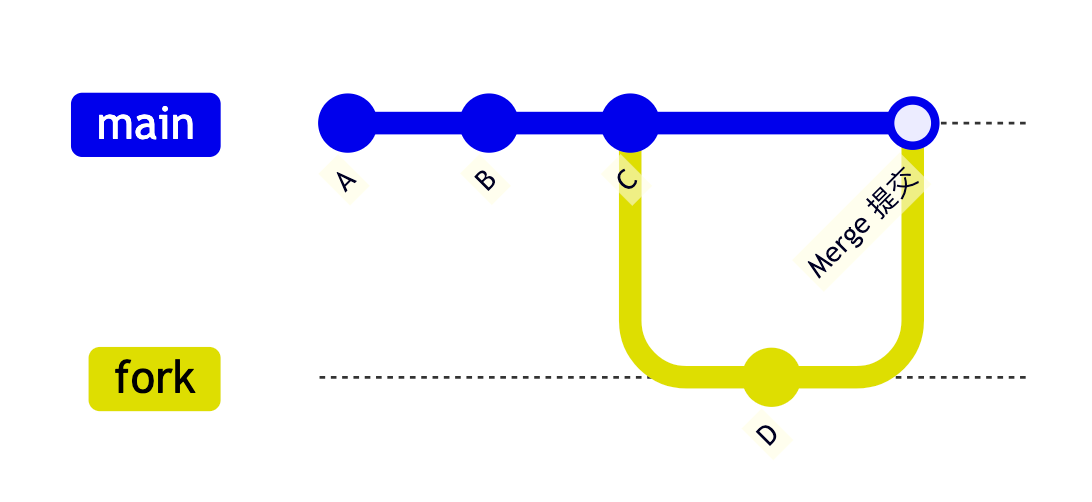
- Produces an extra Merge commit (M)
- History becomes tree-shaped and cluttered
- PRs look noisy and harder to review
2) Using Rebase
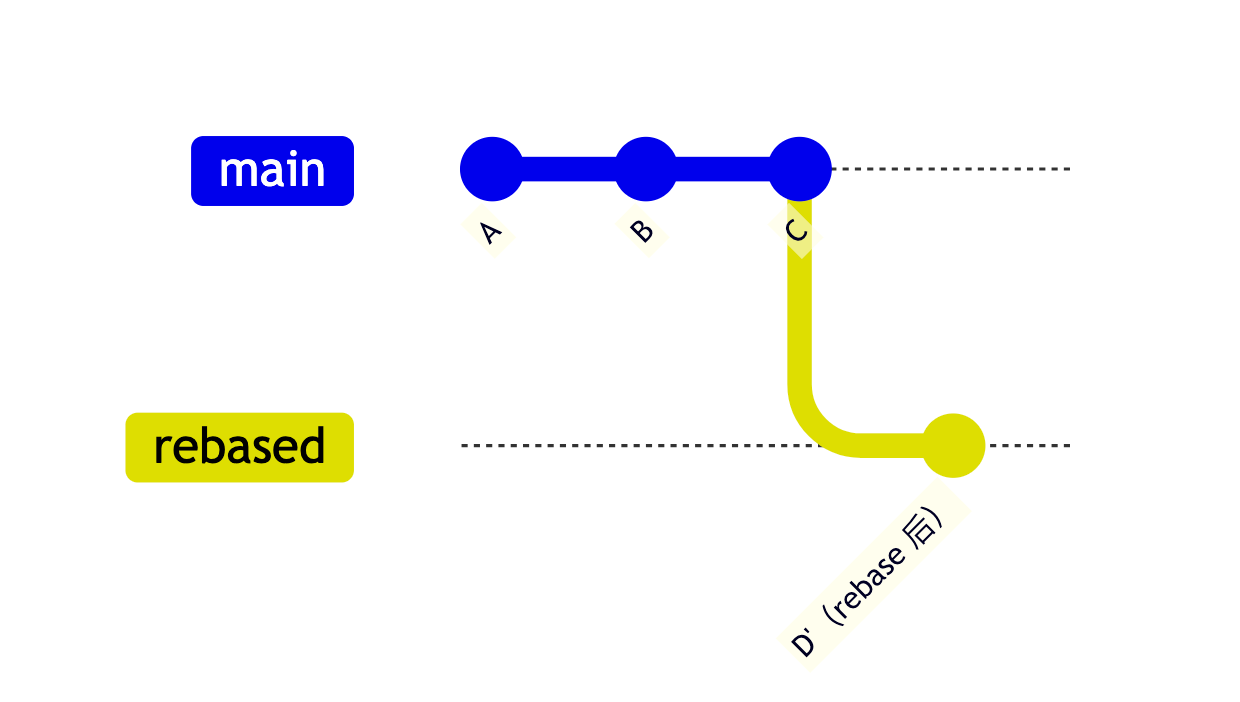
After rebasing, your original commits are replayed on top of the upstream. The old commits are discarded from the branch history, and Git creates new commits with the same content but brand-new commit IDs (D → D’).
Note: This is why
--force-with-lease is required after a rebase push. The remote still has the old commit D, while your local branch now has D'. A regular git push would be rejected; --force-with-lease force-pushes safely by checking that no one else has pushed in the meantime.Benefits of rebase:
- Clean, linear commit history
- Clearer, easier-to-review PRs
- The standard practice for syncing a fork with upstream
4. Handling Conflicts in Merge / Rebase / Sync Fork
Note: Conflict resolution content to be added here.
💡 One-line Takeaway
Use
Use
git restore . for tracked files and git clean -fdxn (dry-run first!) for untracked ones; when syncing a fork, always prefer rebase over merge to keep a clean, linear history — then push --force-with-lease to update the remote safely.